Install monolayer in your AWS
After signing up for monolayer and selecting your plan, you'll reach the Team page.
In this step, you will install monolayer into your own AWS account.
Login to AWS in your terminal
AWS CLI version
You need version 2.32.0 or later of the AWS CLI installed.
If you don't have the AWS CLI installed, you can get the instructions here: https://docs.aws.amazon.com/cli/latest/userguide/getting-started-install.html
Login to your AWS account in your terminal with:
aws loginThis will open a browser window where you can log in to your AWS account.
Permissions
The AWS user running the installer must have AdministratorAccess permissions in the AWS account.
The installer needs these permissions to create the necessary resources (such as roles, Lambda functions, DynamoDB tables) in your AWS account.
Install Node.js
The monolayer installer is run via npx, which requires having Node.js installed on your machine.
If you don't have Node.js installed, you can download it here: https://nodejs.org/en/download
Copy the installation command
Go to the installation instructions page (https://app.monolayer.dev/control-plane-installation-instructions) in your browser.
In the Steps section, you will see an installation command pre-filled for your account.
Copy the command and paste it into your local terminal.
# Example
npx @monolayer/installer@latest <your-license-key>
Launch the installer
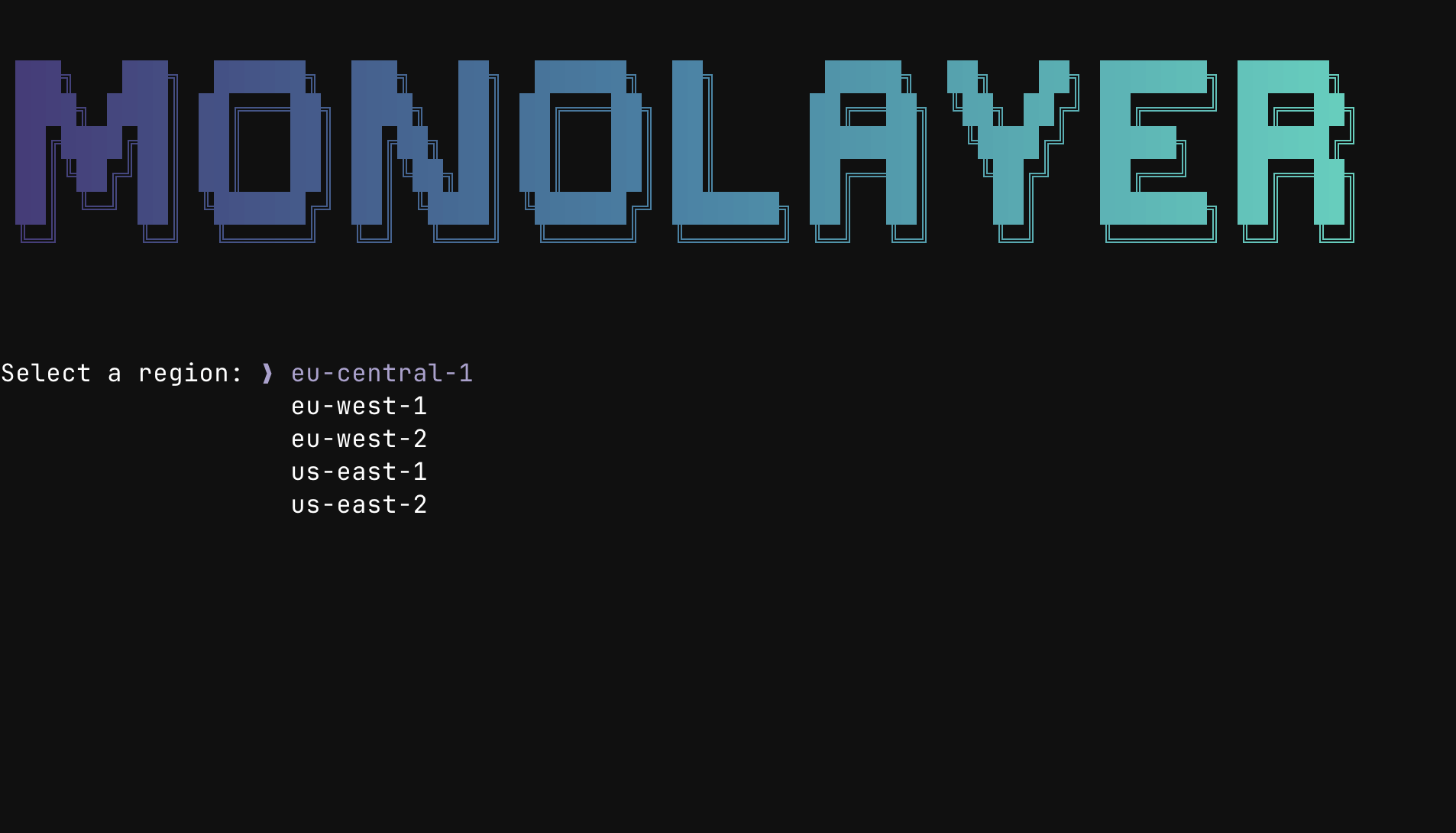
Run the installation command in your terminal. You'll be guided through a short interactive process.
- Select your AWS Region: choose where monolayer should deploy (for example,
us-east-1oreu-west-1).
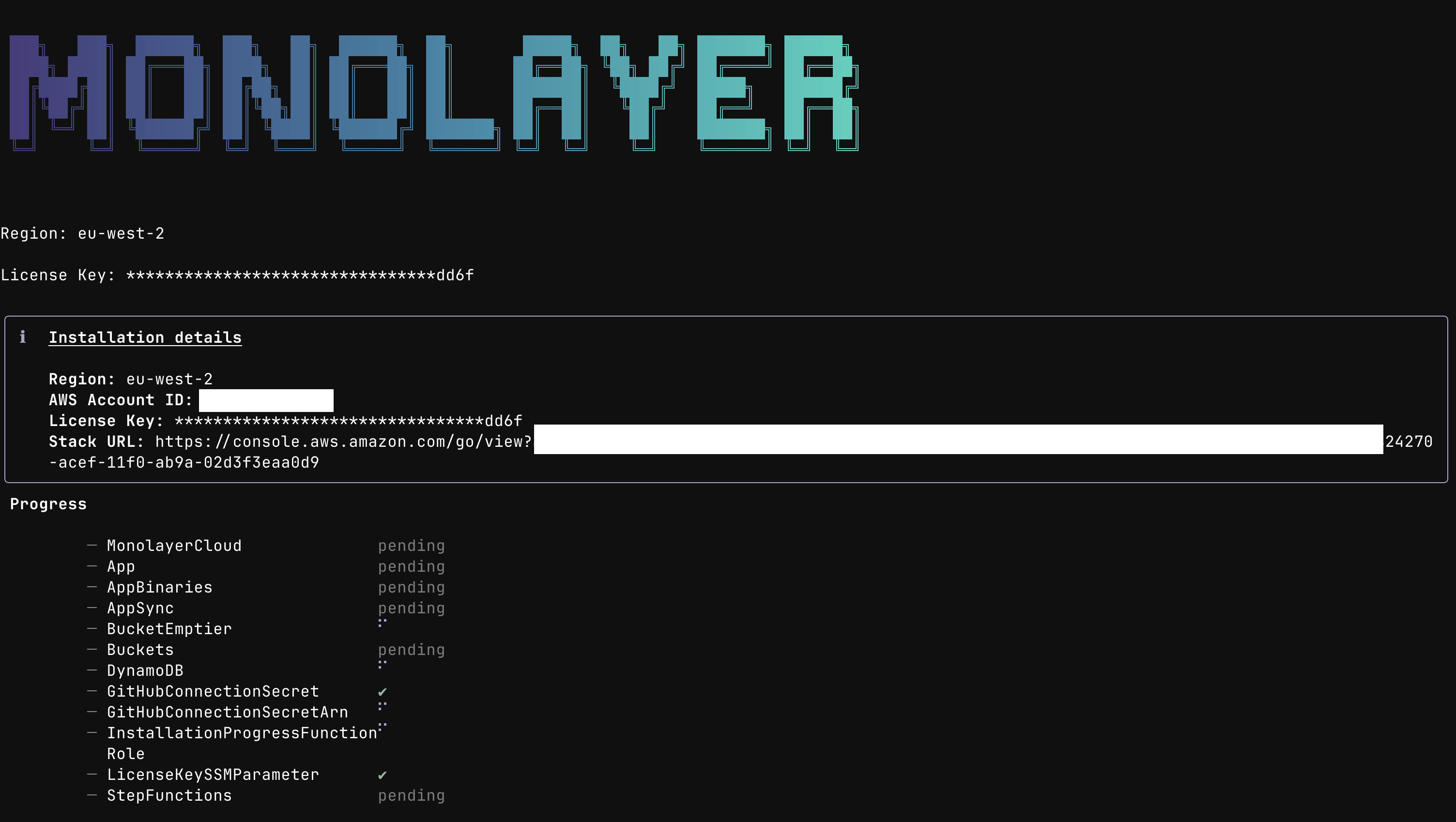
monolayer will begin provisioning your stack using AWS CloudFormation.
Monitor progress
The installer will display real-time progress as the CloudFormation stack is created.
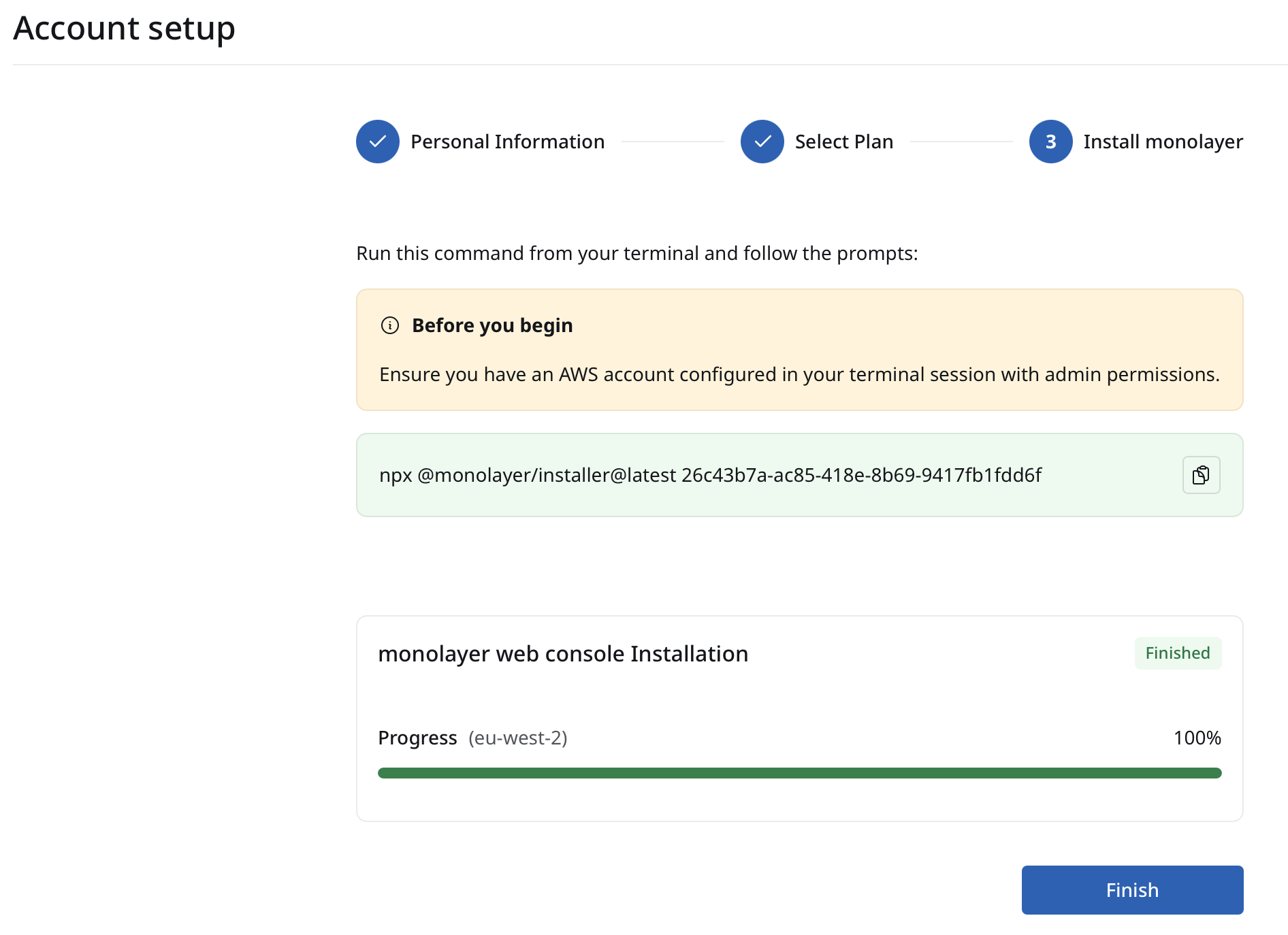
You can also monitor progress in the control plane. Exit the installer (Ctrl+C) and return to the monolayer installation page.
Complete installation
When the installation is complete, click Finish on the monolayer installation page This will finalize the setup and connect your control plane with monolayer.
Troubleshooting
AWS Session Expired
If your AWS session expires after logging in, the installer will fail.
To remediate this, you need to log in again in your terminal:
aws loginOnce logged in again, re-run the installation command.
🎉 Congratulations!
You've successfully installed monolayer in your AWS account. You now have your own zero-ops developer platform running entirely in your cloud — ready to deploy full-stack React applications with built-in databases, background tasks, and real-time capabilities.